
Not finding what you're looking for?
Contact UsManaging Multiple Organizations
How ToMessijo supports multiple organizations per account. This is useful if you monitor mentions for different brands, clients, or projects. Each organization has its own keywords, Lenses, notifications, and team members.
Prerequisites
You need a Messijo account.
What is an organization?
An organization is an isolated workspace within your Messijo account. Each organization has:
- Its own keywords: keywords are not shared across organizations
- Its own Lenses: Lens configurations are organization-specific
- Its own notifications: notification channels are configured per organization
- Its own events: events from keywords in one organization don’t appear in another
- Its own team members: you can have different team members in each organization
- Its own billing: each organization can be on a different subscription tier
Creating a new organization
- Open the user or team menu in the dashboard
- Click New Team
- Enter a name (e.g., “Acme Brand Monitoring” or “Client: TechCorp”)
- Click Create
The new organization starts empty: no keywords, Lenses, or notifications. You’ll need to configure these from scratch.
Switching between organizations
- Open the user or team menu in the dashboard
- Click Switch Team
- Click the team you want to switch to
- The dashboard updates to show that organization’s data
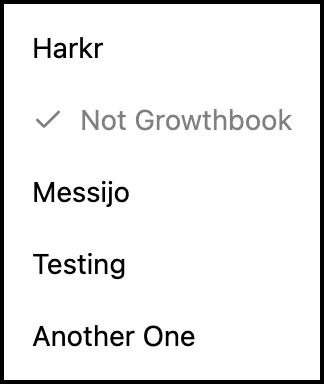
All navigation automatically reflects the currently selected organization.
Organization settings
Each organization has its own settings, accessible when it’s the active organization:
- Keywords: manage keywords for this organization
- Lenses: manage Lenses from each keyword’s Events page
- Notifications: configure notification channels for this organization
- Team Settings: manage team members for this organization
- Billing: manage subscription and quotas for this organization

When multiple organizations make sense
Agency or consultant use case
If you manage mentions for multiple clients, create a separate organization for each client. This keeps client data completely isolated and lets you give each client’s team members access only to their organization.
Multiple brands
If your company has multiple brands or product lines, create an organization per brand. Each brand can have its own keyword strategy and notification routing.
Personal vs work
You might maintain a personal organization for side projects and a work organization for your company. This keeps your personal monitoring separate from work monitoring.
Practical advice
- Name organizations clearly. You should know which organization you’re viewing at a glance.
- Don’t create too many. Each organization adds management overhead. Consolidate where possible.
- If you have organizations for different clients, each client’s billing can be managed independently.
- Review access regularly. Check which team members have access to each organization and remove access when no longer needed.
Deleting an organization
If you no longer need an organization:
- Switch to the organization you want to delete
- Go to Team Settings
- Use the team deletion action
- Confirm
Deleting an organization permanently removes all its keywords, Lenses, events, and notification configurations. This cannot be undone.
Troubleshooting
Can’t find my keywords
- Check which team is currently selected
- Use Switch Team to open the organization where the keywords were configured
Team member sees wrong organization
- Have them check the organization selector
- Make sure they were invited to the correct organization
Billing seems wrong
- Each organization has its own billing. Check the billing settings for the currently selected organization.
Where to go next
- Inviting team members: add people to your organization
- Dashboard overview: tour the dashboard