Not finding what you're looking for?
Contact UsDashboard Overview
ReferenceWhen you log in to Messijo, you land on the dashboard. Here’s what each section does and when you’d use it.
Dashboard Home
The home page gives you the lay of the land at a glance:
- Total Events: mentions matched across all keywords
- Unread Events: mentions you haven’t reviewed yet
- Active Keywords: how many keywords are currently monitoring
- Active Lenses: how many Lens filters are running
- Recent Activity: a feed of the latest matched events

If you only check one thing a day, check this page. For anything deeper, the dedicated pages below are where you’ll spend your time.
Keywords Page
Everything you’re tracking lives here. Each keyword shows its matched platforms, event count, and notification assignments. Click any keyword to edit its configuration: change platforms, add compound logic, set up ignored users.
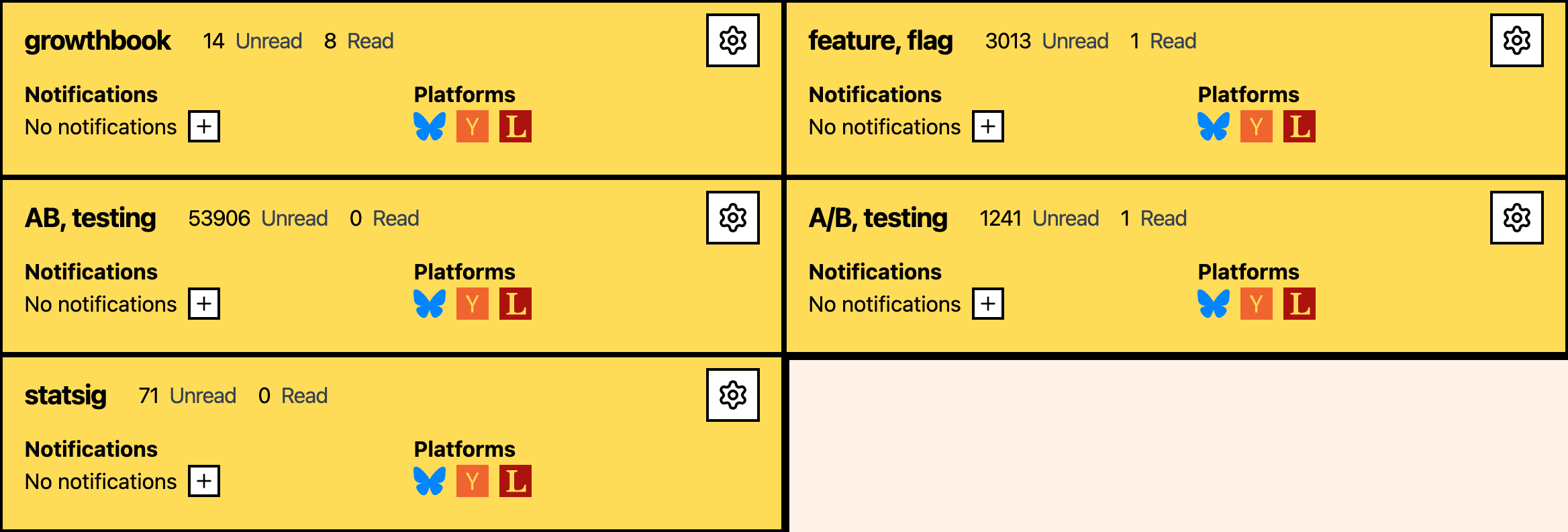
You can pause a keyword without deleting it, which is handy if you want to temporarily stop monitoring something without losing your setup.
Keyword Events and Lenses
Lenses are AI filters that classify mentions by intent. A keyword match just means someone typed your word somewhere. A Lens reads the post and decides whether it’s actually relevant, like “this is a competitor comparison” vs “someone just mentioned the word in passing.”
Open a keyword and use its Events page to review mentions for that keyword. The same page has the keyword’s Lenses card, where you can create Lenses, open Lens settings, and select a Lens to review its filtered results.

Events show up in reverse chronological order, each one showing the platform, author, content snippet, matched keyword, and read/unread state. When you select a Lens from the Lenses card, the list switches to results for that Lens.
You can filter by platform and read/unread status, change the per-page count, and select a Lens from the Lenses card. Need to pull data out? Export to CSV or JSON from the settings/export menu. Click any event to see the full content and jump to the original post.

Notifications Page
Every channel you’ve connected lives here: Email, Slack, Discord, and Webhook. You can add new channels, edit existing ones, verify email channels, connect Slack or Discord, and validate webhook channels.

Settings Page
Team-level configuration, all in one place:
- Team: invite team members and manage roles
- Usage: review event and Lens result quota usage
- Billing: subscription tier, billing status, and Stripe portal access

Finding your way around
The header at the top of the dashboard is your main navigation and it’s always visible. Use Keywords for monitored terms and keyword-specific Events/Lenses, Notifications for delivery channels, and the user menu (your name in the top-right) for Team Settings, team switching, and billing. Most pages have an Add button for creating new items.

Numbers worth watching
- Event volume trends: are mentions increasing or decreasing? Check this weekly
- Unread count: if this keeps climbing, you probably need a Lens to filter noise
- Lens accuracy: if too many false positives slip through, review Lens-filtered results and tighten your prompts
- Quota usage: watch your event and Lens result quotas so you don’t hit limits unexpectedly