
Not finding what you're looking for?
Contact UsWriting Effective Lens Prompts
How ToA Lens takes each keyword-matched event and classifies whether it’s relevant to your specific intent. The key to a good Lens is a well-written prompt. Write a vague one and you’ll get inconsistent results. Write a specific one and the AI will consistently classify mentions the way you would.
Prerequisites
You need at least one keyword configured and a Lens you want to create or improve.
What is a Lens prompt?
A Lens prompt is a natural language instruction that tells the AI how to classify a mention. The prompt describes what makes a mention relevant or irrelevant to your goals. The AI reads each matched post and uses the prompt to decide whether it belongs in the Lens-filtered result list.
For example, if you’re tracking mentions of your brand to find competitor comparisons, your prompt might be: “Does this post compare the mentioned brand to a competitor or alternative product?”
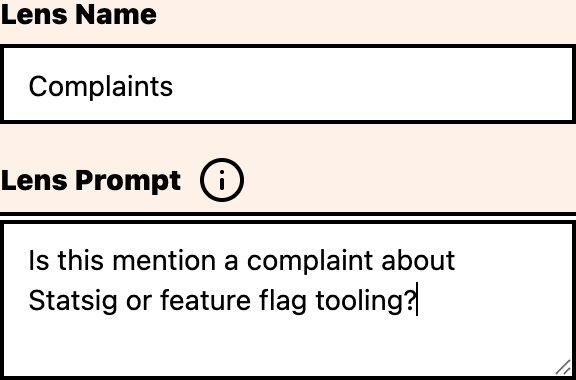
How to structure a prompt
A good prompt has three parts:
1. Context
Tell the AI what it’s looking at and why:
“This is a social media post that mentions the keyword [your brand]. We want to find posts where…”
2. Classification criteria
Be specific about what makes a post relevant:
“…the author is comparing [your brand] to a competitor, recommending an alternative, or asking for product recommendations in the same category.”
3. Exclusions
State what should not count:
“Exclude posts that only mention the brand name without comparing it to another product.”
Example prompts
Competitor comparison detection
“This post mentions our brand ‘Acme’. Does the author compare Acme to a competitor or suggest an alternative product? Look for phrases like ‘better than’, ‘alternative to’, ‘instead of’, ‘switched from’, or direct mentions of competitor names. Exclude posts that only mention Acme without a comparison.”
Customer complaint detection
“This post mentions our brand ‘Acme’. Is the author expressing a complaint or frustration about Acme’s product or service? Look for negative sentiment, words like ‘broken’, ‘doesn’t work’, ‘terrible’, ‘worst’, or requests for help that imply dissatisfaction. Do not include positive reviews or neutral mentions.”
Feature request detection
“This post mentions our brand ‘Acme’. Is the author requesting a feature that Acme doesn’t have, or suggesting improvements? Look for phrases like ‘I wish it could’, ‘would be great if’, ‘missing feature’, ‘when will you add’, or ‘why doesn’t it support’. Exclude posts that simply list features they like.”
Partnership or integration interest
“This post mentions our brand ‘Acme’. Is the author discussing integrating Acme with other tools, asking about API access, or proposing partnerships? Look for mentions of ‘integration’, ‘API’, ‘connect with’, ‘works with’, or specific tool names combined with Acme.”
What works and what doesn’t
Do:
- Be specific. Vague prompts like “is this relevant?” produce inconsistent results. Describe exactly what you’re looking for.
- Give examples. Include example phrases or patterns the AI should look for.
- Define exclusions. Tell the Lens what should not count, especially common false-positive patterns.
- Test and iterate. Review the Lens-filtered events and the broader keyword event list, then adjust the prompt.
- Write naturally. Write as if explaining the task to a human analyst.
Don’t:
- Don’t reference the AI itself. Don’t say “as an AI language model” or “use your training data.” Just describe the classification task.
- Don’t make prompts too long. Keep prompts under 200 words. Longer prompts dilute focus.
- Don’t use ambiguous criteria. “Is this interesting?” is too subjective. “Does this post contain a question about pricing?” is specific.
- Don’t combine multiple intents. One Lens = one classification task. If you need to detect both complaints and feature requests, create two Lenses.
Iterating on prompts
After creating a Lens, review its performance:
- Go to Keywords and open the keyword the Lens belongs to
- Use the keyword’s Events page and select the Lens from the Lenses card
- Check the Lens-filtered events. Are they actually relevant?
- Clear the Lens selection and scan the broader event list. Are any relevant events missing from the Lens results?
- Adjust your prompt based on what you find
- Repeat until the Lens is classifying events the way you would
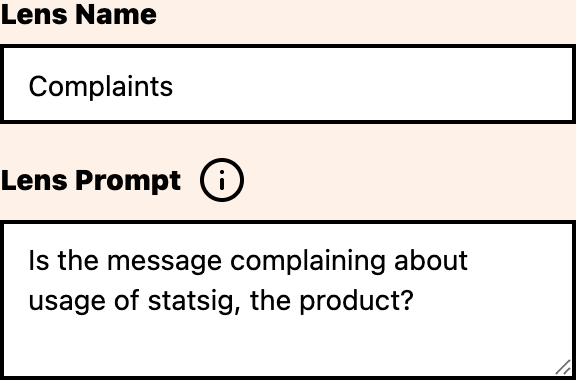

This is the part where most of the work happens. Your first prompt is a guess. The second one is based on data.
Where to go next
- Reviewing Lens results: inspect Lens-filtered events
- Managing lenses: start, stop, and route notifications per Lens