Not finding what you're looking for?
Contact UsConnecting Discord
How ToIf your team already uses Discord, Messijo can post alerts directly to a Discord channel. It’s a good option for keeping everyone informed without adding another tool to the mix.
Prerequisites
- A Discord server where you have admin or manage server permissions
- A Messijo account with at least one keyword configured
Step 1: Open the Notifications page
Go to your dashboard and click Notifications in the header navigation.

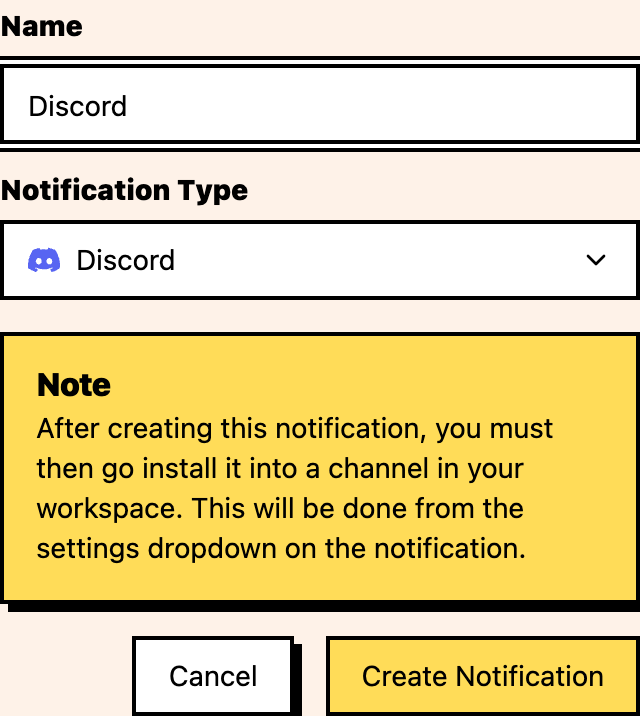
Step 2: Add Discord
Click the add action and select Discord.
Step 3: OAuth authorization
You’ll be redirected to Discord’s authorization page:
- Select your server: choose the Discord server where you want alerts posted
- Review permissions: Messijo requests permission to:
- Send messages in channels
- Read channel list (for channel selection)
- View the server
- Click Authorize: authorize Messijo to access your server
Step 4: Select a channel
After authorization, select the channel where alerts should be posted:
- Choose a channel: pick a text channel in your server. I’d recommend creating a dedicated channel like
#messijo-alertsor#brand-mentions. - Create a channel first (if needed): in Discord, create a new text channel before connecting. Refresh the channel list in Messijo after creating it.
Channel selection tips:
- Use a dedicated channel so alerts are easy to find
- Consider role-restricted channels if only certain team members should see alerts
- Separate channels for different alert types (e.g.,
#competitor-alerts,#support-mentions)
Step 5: Confirm the connection
After OAuth completes, return to Notifications and check the Discord notification card:

- The card should show Connected
- The server and channel should match the destination you selected
- If it is still marked Not Connected, open the card settings and use Connect Discord again
Step 6: Assign keywords
Now that Discord is connected, assign it to your keywords:
- Go to Keywords
- Open the keyword card settings and choose Notifications
- Select your Discord channel in the dialog
- Save
Future matches for this keyword will post to your Discord channel.
What the notification looks like
Discord notifications from Messijo include:
- Keyword that matched
- Platform where the mention was found
- Author username
- Content snippet of the post
- Link to the original post
- Lens details (if Lenses are configured)
- Timestamp of the original post
Managing your Discord connection
- Change channel: go to Notifications, edit the Discord channel, and select a different channel
- Disconnect: go to Notifications, click remove on the Discord channel
- Revoke access: go to Discord’s authorized apps page (discord.com/settings/authorized-apps) to revoke Messijo’s access
Troubleshooting
Messages not appearing in Discord
- Verify the Messijo bot is in the server and has permission to send messages in the target channel
- Check channel permissions: make sure “Send Messages” is enabled for the Messijo bot role
- Confirm the channel hasn’t been deleted or renamed
Bot lost access after server changes
If you reorganize roles or permissions, the Messijo bot may lose access. Re-authorize by removing and re-adding the Discord connection.
Where to go next
- Connecting Slack: set up Slack notifications
- Notification routing: route different keywords to different channels
- Webhook setup: send alerts to any HTTP endpoint