
Not finding what you're looking for?
Contact UsNotification Routing
How ToNotification routing lets you control which alerts go where. Instead of sending every mention to a single channel, you can route different keywords and Lens results to different notification channels. This keeps the right alerts in front of the right people.
Prerequisites
You need at least one keyword configured and at least one notification channel connected.
Two levels of routing
1. Per-keyword routing
Each keyword can be assigned to one or more notification channels. When that keyword matches, notifications go to the selected channels that are verified, connected, or validated.
Example:
- Keyword “acme” → Slack
#brand-alerts - Keyword “competitor-name” → Slack
#competitor-tracking - Keyword “feature-request” → Email only
How to set up:
- Go to Keywords
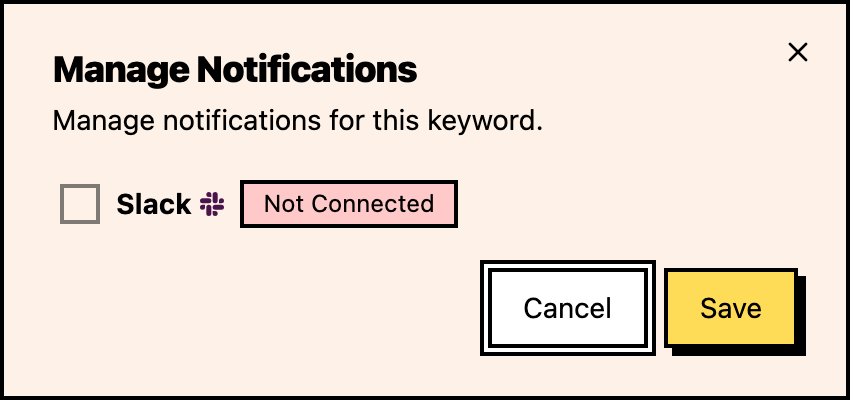
- Open the keyword card settings and choose Notifications
- Select the channel or channels in the Manage Notifications dialog
- Save
2. Per-Lens routing
Each Lens can have its own notification channel. Only events that match the Lens trigger notifications to the Lens’s assigned channel.
Example:
- All “acme” matches → collected in dashboard (no notification)
- “acme” matches in the “competitor comparison” Lens → Slack
#sales-team - “acme” matches in the “customer complaint” Lens → Slack
#support-team
How to set up:
- Go to Keywords and open the keyword the Lens belongs to
- On the keyword’s Events page, find the Lens in the Lenses card
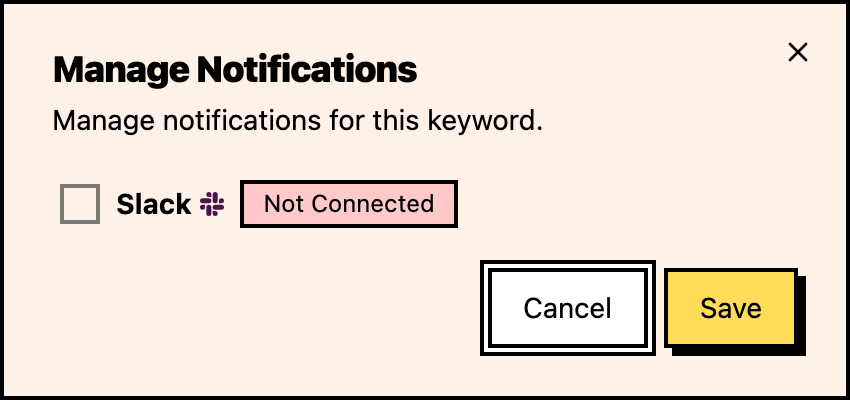
- Open the Lens card settings and choose Notifications
- Select the channel or channels for that Lens
- Save
Combining both levels
You can combine both routing levels for sophisticated alerting:
- Keyword routing sends matches to a default channel
- Lens routing supplements keyword routing for specific event types
Example combined setup:
- Keyword “acme” → email notifications (default for all matches)
- “competitor comparison” Lens → Slack
#sales-team(adds a sales alert for competitor mentions) - “customer complaint” Lens → Slack
#support-team(adds a support alert for complaints) - All other “acme” matches → email only
This way, routine mentions go to email (low priority), while important mentions go to Slack channels where teams can respond quickly.

Common routing patterns
Team-based routing
Route mentions to the team that should handle them:
- Competitor mentions → Sales team Slack channel
- Customer complaints → Support team Slack channel
- Feature requests → Product team Slack channel
- General mentions → Marketing team Slack channel
Priority-based routing
Route by urgency:
- Competitor comparison Lens results → Slack
- Customer complaint Lens results → Discord
- General keyword matches → Email
Person-based routing
Route to individuals:
- Executive mentions → CEO’s email
- Technical discussions → Engineering Slack channel
- Partnership inquiries → Business development email
Multi-channel backup
Route the same events to multiple channels:
- All matches → Dashboard (for review)
- Important matches → Slack (for immediate awareness)
- Critical matches → Webhook (for automation or incident workflows)
Notification batching
Messijo batches some notifications to avoid overwhelming your channels:
- Time-based batching: notifications within a short time window are grouped
- Per-channel batching: each channel has its own batching window
- Batch summary: batched notifications include a summary count and individual event details
You can’t currently configure batching windows. They’re set automatically based on channel type.
Practical advice
- Start simple. One channel for all keywords, then split as needed.
- Review regularly. Check which channels are getting too many or too few alerts.
- Use Lenses for filtering. Route only relevant events rather than all keyword matches.
- Communicate with your team. Make sure people know which channels to watch.
- Don’t over-route. Too many channels make it hard to keep track of where alerts are going.
- Don’t route everything to Slack. High-volume routing can overwhelm Slack channels.
- Don’t forget the dashboard. It always shows all events regardless of routing.
- Reserve Lens routing for events that truly need different handling.
Where to go next
- Connecting Slack: set up Slack channels for routing
- Connecting Discord: set up Discord channels for routing
- Managing Lenses: configure Lens-level routing