
Not finding what you're looking for?
Contact UsCreating Your First Lens
TutorialLenses are AI filters that classify mentions by intent. A keyword match just means someone typed your word. A Lens reads the post and decides whether it’s actually relevant to what you care about. Here’s how to set one up.
Step 1: Open a keyword’s Events page
Log in, click Keywords in the header navigation, and open the keyword you want to filter. Use that keyword’s Events page to review mentions and manage its Lenses.

Step 2: Add a Lens
In the Lenses card, click the add button. You’ll see a form with a Lens name and prompt.
Step 3: Write a prompt
Enter a prompt describing what kind of mentions you want the Lens to find. For this tutorial, we’ll create a competitor comparison Lens.
Type something like:
“This post mentions our brand ‘Acme’. Does the author compare Acme to a competitor or suggest an alternative product? Look for phrases like ‘better than’, ‘alternative to’, ‘instead of’, ‘switched from’, or direct mentions of competitor names. Exclude posts that only mention Acme without comparing it to another product.”
Replace “Acme” with your own brand name. The prompt tells the Lens exactly what to look for and what to exclude. The more specific you are, the better the results.
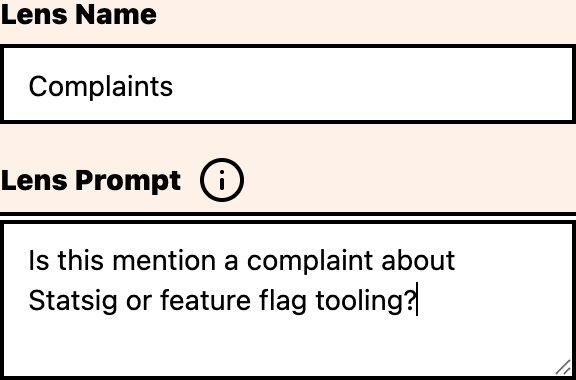
Step 4: Save the Lens
Click Save to create the Lens. The Lens is attached to the keyword you opened, so it classifies events for that keyword rather than every keyword in your organization.
Step 5: Run the Lens
- Return to the keyword’s Events page
- Select the Lens from the Lenses card
- Use the Lens status controls to run it
The Lens processes keyword events and keeps the events that match your prompt available in the Lens-filtered results list.
Step 6: Check your results
After the Lens has results, stay on the keyword’s Events page and select that Lens in the Lenses card. The event list switches to results for that Lens, and you can review the matching events there.

Then ask yourself two questions:
- Are the Lens-filtered events actually competitor comparisons?
- Are any relevant comparisons missing from the Lens-filtered list?
If the answer to either is “no,” adjust your prompt.
Things I wish someone had told me
- Start with one Lens. Get it working well before adding more. Otherwise you can’t tell what’s helping and what’s not.
- Give it a few days before judging results. A few hours of data isn’t enough to know if the prompt is good.
- Editing a Lens invalidates its previous results, so review what you want to change before saving.
- Change one thing at a time. If you rewrite the goal, examples, and exclusions all at once, you won’t know which change helped.
Where to go next
- Writing effective prompts: improve your Lens accuracy with best practices
- Managing Lenses: start, stop, and configure per-Lens notification routing
- Reviewing Lens results: learn how to inspect Lens-filtered events