
Not finding what you're looking for?
Contact UsToo Many False Positives
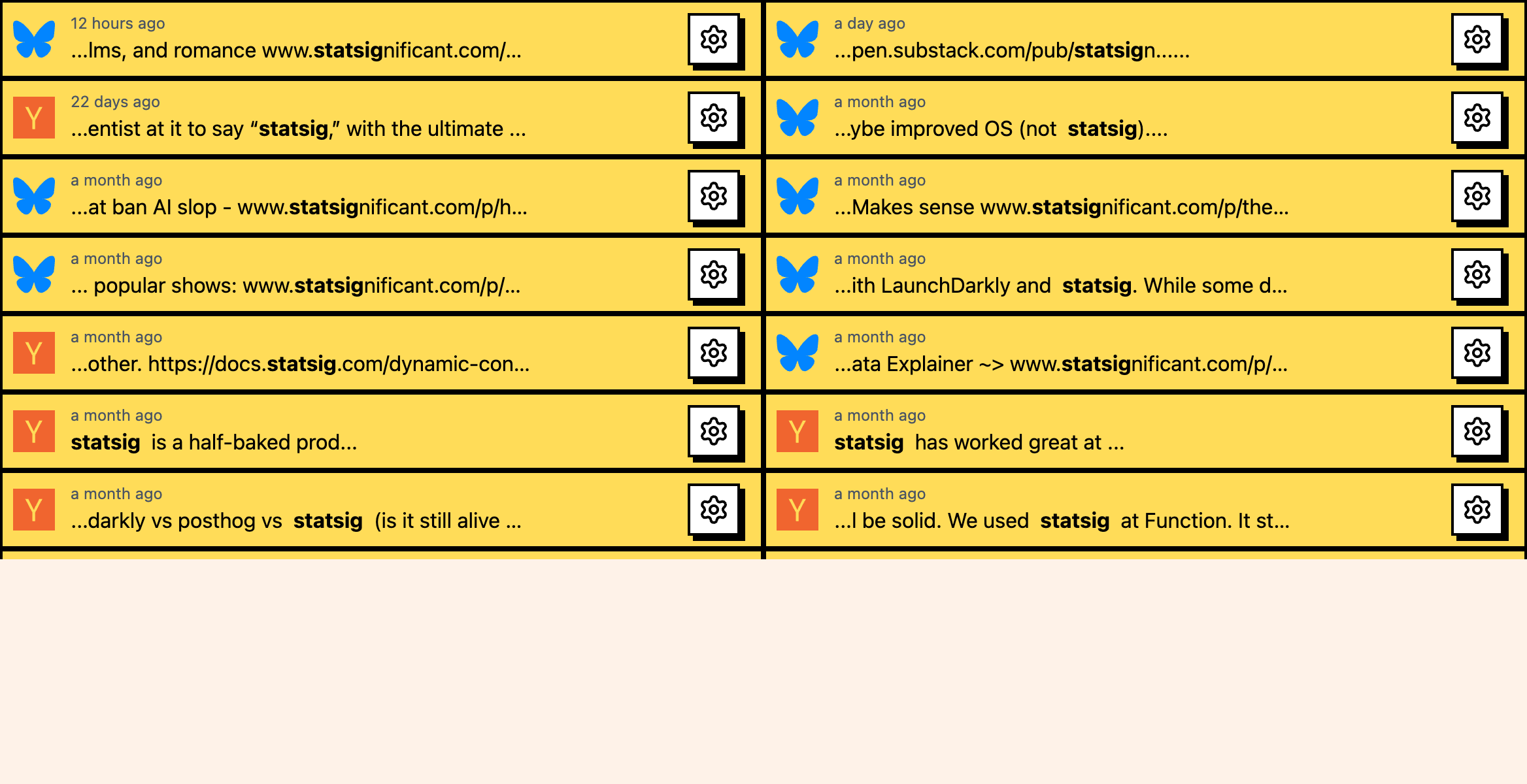
How ToYour dashboard is flooded with irrelevant events. Your keywords technically match, but the matches aren’t actually about what you care about. This is the most common problem with social monitoring, and there are three main tools for fixing it: compound keywords, Lenses, and ignored users.
Prerequisites
You need at least one active keyword with existing events to review.
Diagnosing the problem
First, figure out where the noise is coming from:
- Go to Keywords, open the noisy keyword, and scan through recent matches on its Events page
- Look for patterns in the irrelevant events:
- Are they from the same user? → Use ignored users
- Do they contain a specific word that’s causing the match? → Use compound keywords with NOT
- Are they about a different topic that shares your keyword? → Use Lenses
- Filter events by platform to see if one platform is noisier than others
Solution 1: Compound keywords
Best for: Keywords that match in multiple unrelated contexts.
Using NOT to exclude terms
If your keyword matches posts about an unrelated topic, add a NOT condition:
- Problem: “acme” matches both your company and Acme cartoons
- Fix:
acme NOT roadrunner NOT cartoon
Using AND to require context
If your keyword is too broad alone, require additional context:
- Problem: “apple” matches the fruit, the company, recipes, and more
- Fix:
apple AND iphoneorapple AND macbook
How to apply
- Go to Keywords and click the keyword to edit
- Modify the keyword text to include AND/NOT logic
- Save
- Watch for a few hours to see if false positives decrease
Make one change at a time so you know what helped. Don’t add too many NOT conditions: each one risks filtering out relevant posts. And check that your compound keyword still matches the posts you DO want.
Solution 2: Lenses
Best for: False positives that can’t be eliminated with keyword logic alone, or that require understanding the post’s meaning.
Lenses use AI to classify each event based on a prompt you write. They can understand context that keyword matching can’t.
Setting up a Lens for noise reduction
- Go to Keywords and open the noisy keyword
- On the keyword’s Events page, use the Lenses card to add a Lens
- Write a prompt that describes what makes a mention relevant:
Example prompt:
“This post mentions our brand ‘Acme’. Is the author discussing Acme as a software tool or SaaS product? Keep posts that explicitly reference Acme as a product, service, or company. Exclude posts where ‘acme’ is used as a common word, such as ‘the acme of perfection’.”
- Save and run the Lens
- Review Lens results after a few hours and adjust the prompt as needed

When Lenses are better than compound keywords
- The false positive pattern is semantic (about meaning, not just word presence)
- Different false positives have different causes that can’t be covered by one NOT condition
- You want to keep some matches that would be filtered by a NOT condition
- The noise pattern changes over time and keyword logic can’t adapt
Solution 3: Ignored users
Best for: Specific accounts that consistently post irrelevant content matching your keywords.
When to ignore a user
- A bot that mirrors content and triggers many matches per day
- An account that uses your brand name in their username
- A spammer posting low-quality content
- A user who posts many times daily about a topic that includes your keyword but isn’t about your brand
How to ignore a user
- Go to Keywords and edit the keyword
- Open the Ignored Users section
- Click Add Ignored User
- Enter the platform and username
- Save
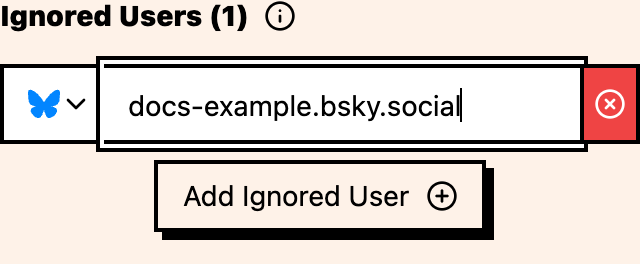
Review the user’s events before ignoring them. Ignored users are configured on each keyword with a platform and username. You can remove a user from the keyword later if needed.
Solution 4: Per-platform adjustment
Best for: Keywords that are noisy on one platform but fine on others.
- Go to Keywords, open the keyword, and use the Events page platform filter
- Identify which platform generates the most false positives
- Go to Keywords and click the keyword to edit
- Uncheck the noisy platform
- Save

Combining solutions
For best results, layer these approaches:
- First, use compound keywords to eliminate the most obvious false positive patterns
- Then, ignore users who are consistently noisy
- Finally, set up a Lens to filter remaining false positives by meaning/intent
- Adjust platform selection if one platform is much noisier
Monitoring your progress
After applying fixes, check your results:
- Go to Keywords, open the keyword, and review the last 24 hours on its Events page
- Compare the ratio of relevant to irrelevant events
- If still too many false positives, tighten one of your filters
- If now too few relevant events, loosen one of your filters
Where to go next
- Simple vs compound keywords: learn compound keyword syntax
- Writing effective Lens prompts: create AI filters
- Ignoring users: filter specific accounts