Not finding what you're looking for?
Contact UsNotifications Not Arriving
How ToYou see events in your dashboard but notifications aren’t coming through. Here are the possible causes and how to fix each one.
Prerequisites
You need at least one keyword configured with a notification channel assigned.
Quick checklist
- ✅ Keyword is assigned to a notification channel from the keyword card
- ✅ Notification channel is verified, connected, or validated
- ✅ Lens (if configured) isn’t filtering out all events
- ✅ You haven’t muted or filtered the channel on your end
- ✅ Notification batching isn’t delaying delivery
Cause 1: Keyword not assigned to a channel
Symptom: Events appear in the dashboard but no notifications are sent to any channel.
Check:
- Go to Keywords
- Open the keyword card settings and choose Notifications
- Is a verified, connected, or validated channel selected?
Fix: Select a notification channel in the dialog, save, and wait for the next match. You should get a notification.
Cause 2: Notification channel not connected
Symptom: Keyword is assigned to a channel but no notifications arrive.
Check:
- Go to Notifications in your dashboard
- Is the assigned channel listed?
- Does the card show the right state: Verified for email, Connected for Slack or Discord, or Validated for webhooks?

Fix:
- If the channel isn’t listed, add it (see Connecting Slack, Connecting Discord, or Webhook Setup)
- If the channel exists but is not ready, use its card action: verify email, connect Slack or Discord, or validate webhook
- For Slack: verify the Messijo app is still in the channel
- For Discord: verify the Messijo bot has permission to send messages
- For Email: check spam/junk folder
- For Webhook: check your endpoint is running and accessible
Cause 3: Lens is filtering everything
Symptom: Events appear in the dashboard but notifications don’t fire, and you have a Lens configured.
Check:
- Go to Keywords and open the keyword that should be sending notifications
- On the keyword’s Events page, check the Lenses card
- Select the relevant Lens from the Lenses card. Are there no events in the Lens-filtered list?
Fix:
- Review the Lens prompt: make sure it isn’t too restrictive
- Compare against the broader event list: look for relevant events that are missing when the Lens is selected
- Check per-Lens notification routing: if the Lens has its own notification channel, make sure that channel is connected
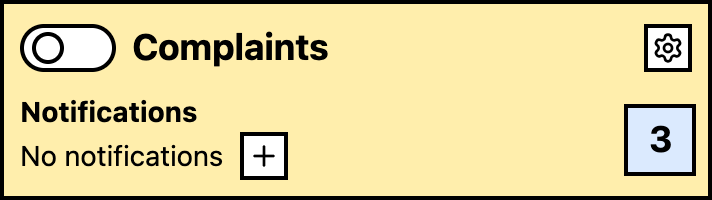
Cause 4: Per-Lens routing overrides keyword routing
Symptom: Notifications go to a different channel than expected, or don’t arrive at the expected channel.
Check:
- Go to Keywords and open the keyword the Lens belongs to
- On the keyword’s Events page, open the relevant Lens in the Lenses card
- Check if Lens notification routing is set to a specific channel
- If so, only Lens-filtered events go to that channel
- Events outside the Lens result list don’t trigger the Lens route
Fix:
- If you want all keyword events to notify, assign a keyword-level notification channel from the keyword card
- Keep Lens routing for the subset of events that need a separate destination
- Review Notification Routing for how routing layers interact
Cause 5: Event quota reached
Symptom: Notifications stopped suddenly after working for a while.
Check:
- Go to your Dashboard home
- Check event quota usage: if you’ve hit your limit, new events aren’t collected
- If events aren’t collected, they can’t trigger notifications

Fix:
- Upgrade your plan for a higher quota
- Wait for the quota to reset at your next billing date
- Reduce keyword noise to lower event volume
Cause 6: Notification batching delay
Symptom: Notifications arrive but with a delay, not in real time.
This is expected behavior. Messijo batches notifications to avoid flooding channels. Multiple events within a short window may be grouped into one notification.
Batching is automatic and can’t be disabled. If batching is too aggressive for your needs, consider using webhooks for immediate delivery. Check the batched notification: it should contain all events from the batching window.
Cause 7: Channel-specific issues
- Check spam folder: add [email protected] to your contacts
- Check email filters: your email client may be filtering Messijo notifications
- Verify email address: make sure the email channel has the correct address
Slack
- App removed from channel: re-invite the Messijo app to the channel
- Channel renamed/deleted: update the channel selection in Messijo
- Workspace changes: re-authorize Messijo if the workspace was migrated
Discord
- Bot permissions changed: verify the bot can send messages in the channel
- Channel deleted: select a new channel in Messijo
- Bot kicked from server: re-authorize Messijo through the OAuth flow
Webhook
- Endpoint down: check that your server is running
- Endpoint returning errors: check server logs for processing errors
- URL changed: update the webhook URL in Messijo
- Signature mismatch: if you changed the secret, update it in Messijo
Still not working?
If you’ve checked all the above and notifications still aren’t arriving, contact support at [email protected] with:
- Your notification channel type and configuration
- The event that should have triggered a notification (with timestamp)
- Whether the email is verified, Slack or Discord is connected, or the webhook validates
We’ll investigate the delivery pipeline.
Where to go next
- Notification routing: understand routing rules
- Connecting Slack: verify Slack setup
- Connecting Discord: verify Discord setup